Documentation
Welcome to Drive Assist (DriveMem)
Transparency, Control, and Safety for the Geely EX2 / Geometry E (IHU629G)
Welcome to Drive Assist! This guide provides complete and transparent disclosure of what this application does, what vehicle data it accesses, what actuators it can control, the exact boundary between mapped hardware signals and running software, and the safety measures designed to protect you, your vehicle, and your privacy.
🧭 Philosophy & Purpose
Factory electric vehicle infotainment units often isolate data and forget driver preferences every time the car turns off. Drive Assist runs natively on the Android head unit (IHU629G) to:
- Preserve Driver Comfort & Preferences: Automatically restore your chosen driving dynamics (Eco/Comfort/Sport and Creep Mode) upon startup.
- Provide Local-First Telemetry: Send vehicle diagnostics directly to your personal Home Assistant server without proprietary subscription clouds.
- Enhance Road Trips: Stream live battery consumption and state of charge directly to A Better Routeplanner (ABRP) for precise route and charging predictions.
- Offer Smart Dashcam Recording: Record camera feeds with live telemetry overlays and easy USB export.
🚗 Live Vehicle Interface: Comfort View
The primary driver interface is designed specifically for the Geely EX2 (IHU629G) landscape screen (1920x1080 @ 160 dpi / 1.0 density factor), providing instant at-a-glance status and tactile climate controls:
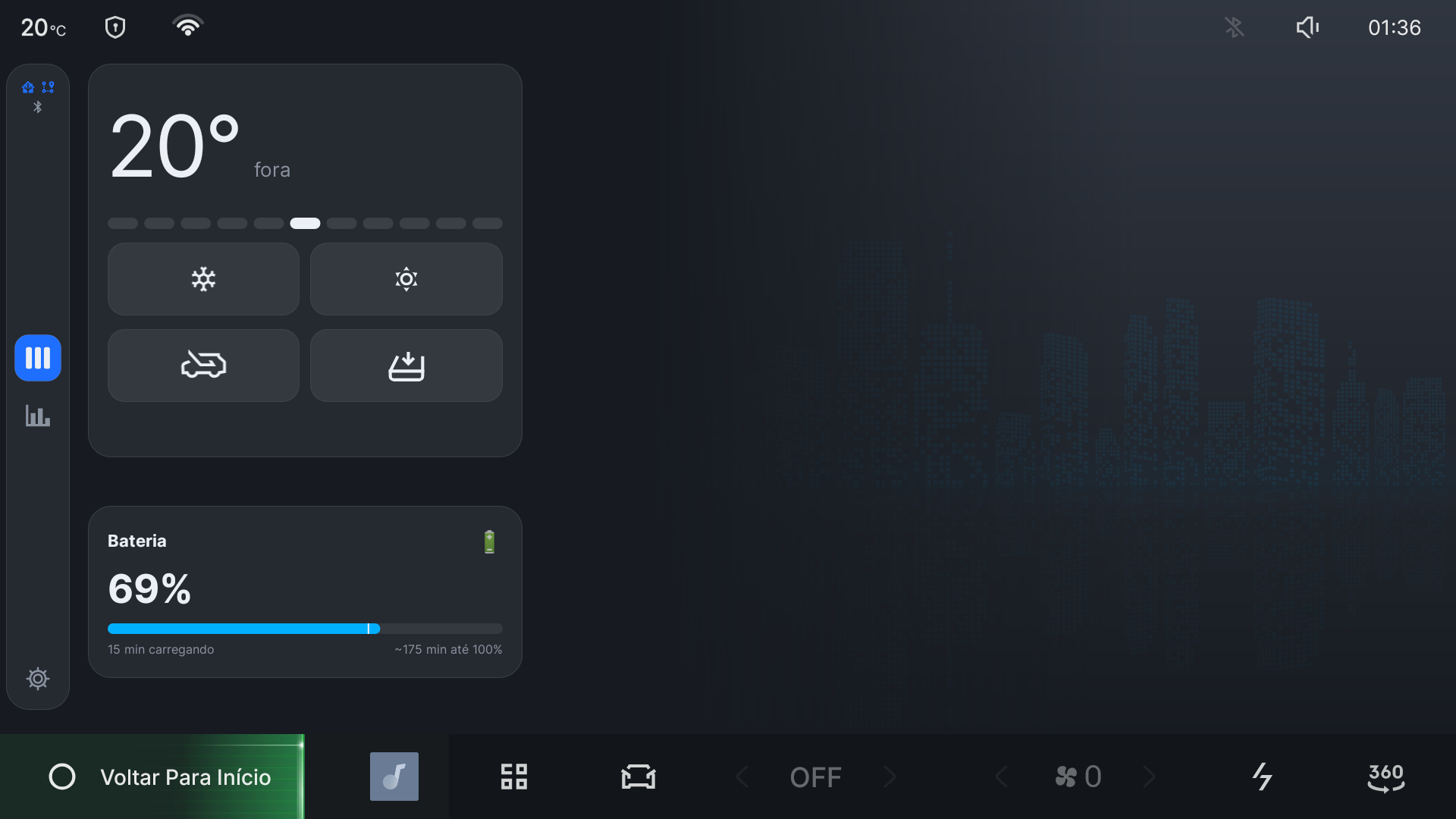 Figure 1: Drive Assist Comfort View running live on the Geely EX2 / Geometry E IHU629G head unit. Showcases outdoor ambient temperature (20°C), the 11-column Comfort Ruler HVAC scale (
C5..0..W5), real-time high-voltage charging card (69% SoC, 16 min elapsed, ~175 min remaining to 100%), window purge and recirculation quick-toggles, and the left-rail navigation dock.
⚖️ Mapped Capabilities vs. What the APK Actually Does
During the reverse-engineering of the IHU629G platform, over a hundred hardware signals and function IDs were identified and documented in our DATA-CATALOG.md and field-catalog.md. However, there is a strict difference between what the vehicle hardware exposes and what Drive Assist actually executes.
flowchart TD
    subgraph MAPPED["Vehicle Hardware Signals (Mapped / Researched)"]
        M1["Powertrain & VHAL Telemetry"]
        M2["TPMS Tire Pressures (Read-Only)"]
        M3["Exterior Lights & Wipers (Read-Only)"]
        M4["Direct CAN / Steering / Brakes (Strictly Probed / Unused)"]
        M5["BMS High-Voltage Pack Diagnostics (OBD2)"]
    end

    subgraph APK["What the APK Actually Runs (Active Software)"]
        A1["Drive Mode & Creep Persistence Engine"]
        A2["Comfort Ruler HVAC Climate Controller"]
        A3["Continuous Dashcam Loop (EVS HAL + WebVTT Subtitles)"]
        A4["Home Assistant MQTT Reporter & Dynamic Context Panel"]
        A5["ABRP Live Telemetry Streamer"]
        A6["Bluetooth OBD2 BMS Reader (When Paired)"]
        A7["Manual Cabin Doors & Window Actuation (Parked Only)"]
        A8["Ambient Interior Light Strip Control"]
    end

    M1 --> A1 & A4 & A5
    M5 --> A6 --> A4 & A5
    M1 --> A2
1. What the APK ACTUALLY Implements
- Drive Mode & Creep Memory: Automatically applies your saved drive profile (
ECO,COMFORT,SPORT) and creep toggle on ignition via the privileged companion appmodehelper. - Comfort Ruler (HVAC): Calibrated single-slider thermal control (
C5..0..W5) translating desired cabin comfort into fan, temperature, and AC compressor commands without reversing the factory state machine (illustrated in Figure 1 above and documented in HVAC Effort Table Architecture). - Continuous Hardware Dashcam: Directly attaches to the native automotive video stream (
android.hardware.automotive.evs@1.0), hardware-encodes video (MediaCodec), burns in synchronized WebVTT telemetry subtitles (speed, gear, coordinates), and supports one-tap USB clip export. - Home Assistant MQTT Telemetry & Controls: Publishes 40+ vehicle sensors every 10–15 seconds with Home Assistant Auto-Discovery, displays live custom HTML from HA on the center console (
/panel), and executes remote commands (climate steps, charging on/off, charge current limits, parking mode, OTA updates) only when explicitly unlocked by the driver. - ABRP Live Telemetry: Streams real-time SoC, consumption, speed, GPS, and elevation every 6 seconds to
api.iternio.com, with an offline in-memory queue for tunnels and dead zones. - Bluetooth OBD2 BMS Reader: Interfaces with a paired OBD2 adapter to poll the Battery Management System (ECU
0x7E2) for 0.1% fine SoC, battery voltage, current, and pack temperature. - Window Pressure Relief & Purge: Implements DoorWindow (cracks windows by 10% when a door opens to eliminate cabin pressure slam, then closes on door latch) and Purge (lowers windows halfway on manual button press to purge hot air).
- Safety & Access Guard: Enforces touch cooldowns to prevent accidental double-taps, restricts network ADB to a privileged Wi-Fi SSID, and enforces an automatic 15-minute ADB timeout.
2. What is Mapped as Read-Only (Never Actuated by the APK)
- Doors & Latches: Door latch positions (
car.door_pos) and lock statuses (0x264020AA) are monitored as read-only telemetry. The APK contains NO code to lock or unlock doors, and NO code to release the trunk latch. - TPMS Tire Pressures: The app reads tire pressures and temperatures for telemetry and display, but does not interact with the TPMS ECU.
- Exterior Lights: Headlights, high beams, position lights, and turn signals are read-only telemetry states. The app never actuates exterior driving lights. (Only interior cabin ambient LED strip color/brightness can be adjusted).
- Wipers, Horn & Alarms: Mapped in the hardware catalog, but the APK contains zero actuation code for them.
🔌 The OBD2 Connection Reality & Pairing Requirement
An optional Bluetooth OBD2 dongle can provide finer battery readings directly
from the Battery Management System (BMS ECU 0x7E2). Drive Assist remains
usable without it.
[!IMPORTANT] Tested IHU629G behavior: The tested vLinker MC+ could not pair from the car’s standard Bluetooth settings screen. Other adapters are untested and may work normally.
Why Standard Pairing Fails
- The head unit’s factory Android 9 Bluetooth stack has an internal auto-pairing PIN hardcoded in
/system/etc/bluetooth/btDefSetting.jsonset to"pairingCode": "0000". - Standard OBD2 / ELM327 adapters (such as the tested vLinker MC+) expect PIN
"1234"by default. - When pairing is initiated, the head unit silently sends
"0000"to the dongle without ever displaying a PIN entry prompt on the screen and without broadcastingACTION_PAIRING_REQUEST. - The dongle immediately rejects
"0000"withAUTHENTICATION_FAILURE(UNBOND_REASON_AUTH_FAILED).
This fix is optional and separate from installing Drive Assist.
install.sh does not run it. Only run it yourself if you’re pairing an OBD2
dongle — see the scripts in bt-pin-fix/ below.
[!WARNING] This is a persistent, system-wide change, not a normal setup step. It edits
/system, so uninstalling Drive Assist and factory-resetting the car do not undo it. While active, it changes the automatic simple-pairing PIN for all Bluetooth devices, not just the dongle. Perform it only while parked, and avoid interrupting an active Bluetooth call or media session.You don’t need to leave it changed. The PIN is only checked at the moment of pairing — once the dongle is paired, the car remembers it by a stored bond key, not the PIN. Pair the dongle, then run
bt-pin-fix/revert-pin-0000.shright away. The dongle stays paired with the PIN back at factory0000. The scripts replace the complete configuration file from the tested firmware; do not apply or revert them after an IHU update without checking the on-car configuration first.
Optional pairing workarounds
Do not use either workaround unless the particular adapter fails normal pairing. Root ADB is required to override the system PIN:
- Method A — Modifying
btDefSetting.json: Use the repository script; do not copy a hand-edited configuration file to the car:./bt-pin-fix/apply-pin-1234.sh <CAR_IP>Once updated, pairing from the car’s screen or companion app succeeds immediately with PIN
1234. - Method B — Headless Pairing via
modehelper: The companion appmodehelperhas system-levelBLUETOOTH_PRIVILEGEDrights and provides command-line pairing via broadcast:adb shell am broadcast -a com.geely.modehelper.BT_PAIR --es addr <DONGLE_MAC> --es pin 1234 -n com.geely.modehelper/.BtPairReceiver
[!TIP] OBD2 is Completely Optional: If you do not have an OBD2 dongle or have not performed the ADB pairing setup, Drive Assist operates seamlessly using the car’s built-in VHAL. Battery SoC (whole-percent) and charging telemetry continue to report normally to Home Assistant and ABRP.
👁️ What the App Sees (Data Read)
Drive Assist reads data from the vehicle’s internal Vehicle Hardware Abstraction Layer (VHAL), OEM adaptation layers (VehicleModules), onboard GNSS (GPS), and optional Bluetooth OBD2 dongles.
1. High-Voltage Battery & Charging
| Data Field | Source | Description | Precision | | :— | :— | :— | :— | | State of Charge (SoC) | VHAL / OBD2 | Battery percentage | Integer % (VHAL) or 0.1% (OBD2) | | Pack Voltage & Current | OBD2 / BMS | High-voltage pack electrical measurements | Real-time Volts (V) and Amperes (A) | | Instant Power | OBD2 / VHAL | Energy flow into or out of the pack | Kilowatts (kW), +/- for regen/discharge | | Battery Temperature | OBD2 / BMS | High-voltage pack core temperature | Degrees Celsius (°C) | | Charging Cable Status | VHAL | Physical plug insertion detection | Plugged in / Disconnected | | Charging State & Limits | VHAL | AC charging active/idle, 16A vs 32A limit | Current limit setting, charging status |
2. Dynamics & Powertrain
| Data Field | Source | Description |
| :— | :— | :— |
| Vehicle Speed | Cluster / VHAL | Wheel speed sensors in km/h |
| Selected Gear | Transmission ECU | Active gear position (P, R, N, D) |
| Odometer | Instrument Cluster | Total accumulated mileage in kilometers |
| Estimated Range | Cluster ECU | Remaining driving range estimated by car |
| Drive Mode | VHAL | Active drive profile (ECO, COMFORT, SPORT) |
| Creep Mode | VHAL | Low-speed accelerator release crawl setting |
3. Environment & Location
| Data Field | Source | Description | | :— | :— | :— | | GPS Position | IHU GNSS | Latitude, longitude, altitude, heading, accuracy | | Outside Temperature | HVAC ECU | Ambient air sensor behind front bumper (°C) |
4. Body, Cabin & Peripherals
| Data Field | Source | Description | | :— | :— | :— | | Doors & Latches | Body Controller | Open/closed status of doors, trunk, and hood | | Windows | Window Modules | Window height / cracked ventilation status | | HVAC & Climate | HVAC Controller | Fan speed, target temp, compressor status, recirculation | | Tire Pressures & Temps | TPMS | Direct pressure (bar/psi) and temperature per tire (Read-only) | | External Lighting | Lighting Module | Position lights, low beams, high beams (Read-only) | | Cameras | EVS HAL | Front and rear cameras via native video stream | | Media Playback | Android Media | Active song, artist, album art, playback state |
🛡️ Safety Boundaries & Actuator Limitations
[!CAUTION] Non-Negotiable Safety Boundaries: Drive Assist is engineered with absolute physical and software firewalls. It interacts exclusively with comfort, body, and infotainment controllers.
What the App CAN Control
- HVAC target temperature, fan speed, and AC compressor toggle via the Comfort Ruler
- Drive mode selection (
ECO,COMFORT,SPORT) and creep mode - Interior cabin ambient LED color and brightness
- Window crack on door open (
DoorWindow) and manual hot-air purge (Purge, parked only) - AC charging toggle and AC charging current limit (16A / 32A)
- Parking mode accessory power keep-alive and timer
What the App CANNOT Touch
- ❌ No Door Locking / Unlocking: The app has no lock/unlock actuators or commands. Door latches are read-only sensors.
- ❌ No Trunk Release: The trunk latch cannot be opened or released by the app.
- ❌ No Steering Intervention: The app cannot turn the steering wheel or influence lane assist.
- ❌ No Braking Control: The app has zero interface to the friction braking or ABS system.
- ❌ No Acceleration / Throttle: The app cannot command motor torque or accelerate the vehicle.
- ❌ No High-Voltage Contactors: The app cannot force high-voltage battery contactors open or closed during driving.
- ❌ No Airbag / Safety Systems: The SRS and restraint systems are completely isolated and inaccessible.
🔒 Security & Privacy Safeguards
1. Remote Commands Lock (“Aceitar Comandos do HA”)
In the MQTT settings, the Accept Commands from HA switch is a master safety override:
- When Disabled: The MQTT client strictly drops all incoming command topics (
/set,/toggle). The car only publishes telemetry and accepts zero incoming commands. - When Enabled: Remote commands from your private Home Assistant instance are processed.
2. Touch Cooldown Prevention
To prevent accidental repeated clicks on the vehicle touchscreen while driving or parking:
- All sensitive action buttons enforce a software cooldown timer (default: 3 seconds).
- Repeated taps during the cooldown window are ignored and accompanied by visual feedback.
3. Moving Vehicle Safeguards
- Actuator actions that pose safety hazards (such as window roll-down via Purge) verify vehicle speed and transmission state.
- Actions are automatically blocked if the car is moving in gear (
DorR).
4. ADB Security Gate (Maintenance Access)
Android Debug Bridge (ADB) allows low-level terminal debugging:
- Default Closed: Network ADB is permanently off unless explicitly triggered.
- Wi-Fi Whitelist: Can only be enabled when connected to your configured Privileged Wi-Fi SSID.
- Auto-Shutoff Timer: ADB automatically terminates after 15 minutes of inactivity.
5. Data Privacy & Local-First Architecture
- Zero Telemetry to Third-Party Clouds: Drive Assist does not report vehicle usage, GPS logs, or driving habits to Geely, Google, or any analytics provider.
- Direct Encryption: Communication to your Home Assistant server supports Mutual TLS (mTLS) with client certificates, ensuring no open or plaintext traffic over the internet or public Wi-Fi hotspots.
- Optional Location Sharing: GPS streaming to ABRP can be toggled off at any time via the
abrp_send_locationswitch.
⚠️ Risks & Considerations
| Consideration | Details | Best Practice |
|---|---|---|
| 12V Auxiliary Battery | Frequent background polling or prolonged parked Wi-Fi connection could theoretically deplete the 12V battery. | Drive Assist halts background polling when the car is parked and off. The IHU automatically enters deep standby when the car is locked. |
| Bluetooth PIN Override | Optional workaround only: it replaces a complete, firmware-specific /system Bluetooth configuration and changes the automatic simple-pairing PIN globally while active. It survives uninstall and factory reset. |
Use only while parked and only for the tested pairing failure; restore 0000 immediately after the dongle bonds. Do not apply or revert the bundled file after an IHU update until the on-car file has been checked. |
| Network Tethering | Streaming high-frequency telemetry (MQTT/ABRP) consumes mobile data if tethered via personal hotspot. | At 10s intervals, telemetry consumes approximately 2–5 MB per driving hour. |
| Firmware Updates | Official dealership firmware updates to the IHU may overwrite root access or system modifications. | Always back up configuration files and follow the update guide in docs/GUIA-ADB-IHU629G.md. |
📚 User Documentation Guides
Detailed step-by-step guides for configuring each integration:
- 🏠 MQTT & Home Assistant Guide: Full setup for Home Assistant auto-discovery, broker configuration, mTLS certificates, topic schemas, and garage door automations.
- ⚡ ABRP Telemetry Guide: How to link your vehicle to A Better Routeplanner, configure generic tokens, and pair a Bluetooth OBD2 dongle with the ADB pairing override.
- 🔧 ADB Setup & Troubleshooting: How to manage the Android environment, install updates, and inspect system logs.