Documentation
Drive Assist: a guide for drivers
English · Português (Brasil)
Drive Assist adds the dashboard Geely owners wish the car had shipped with. It runs directly on the EX2 / Geometry E centre screen and brings climate shortcuts, driving history, charging costs, useful status information, and optional smart-home connections into one place.
This guide covers the product and its operation. Protocols, vehicle property IDs, and reverse-engineering evidence remain available in the technical library.
Your everyday dashboard
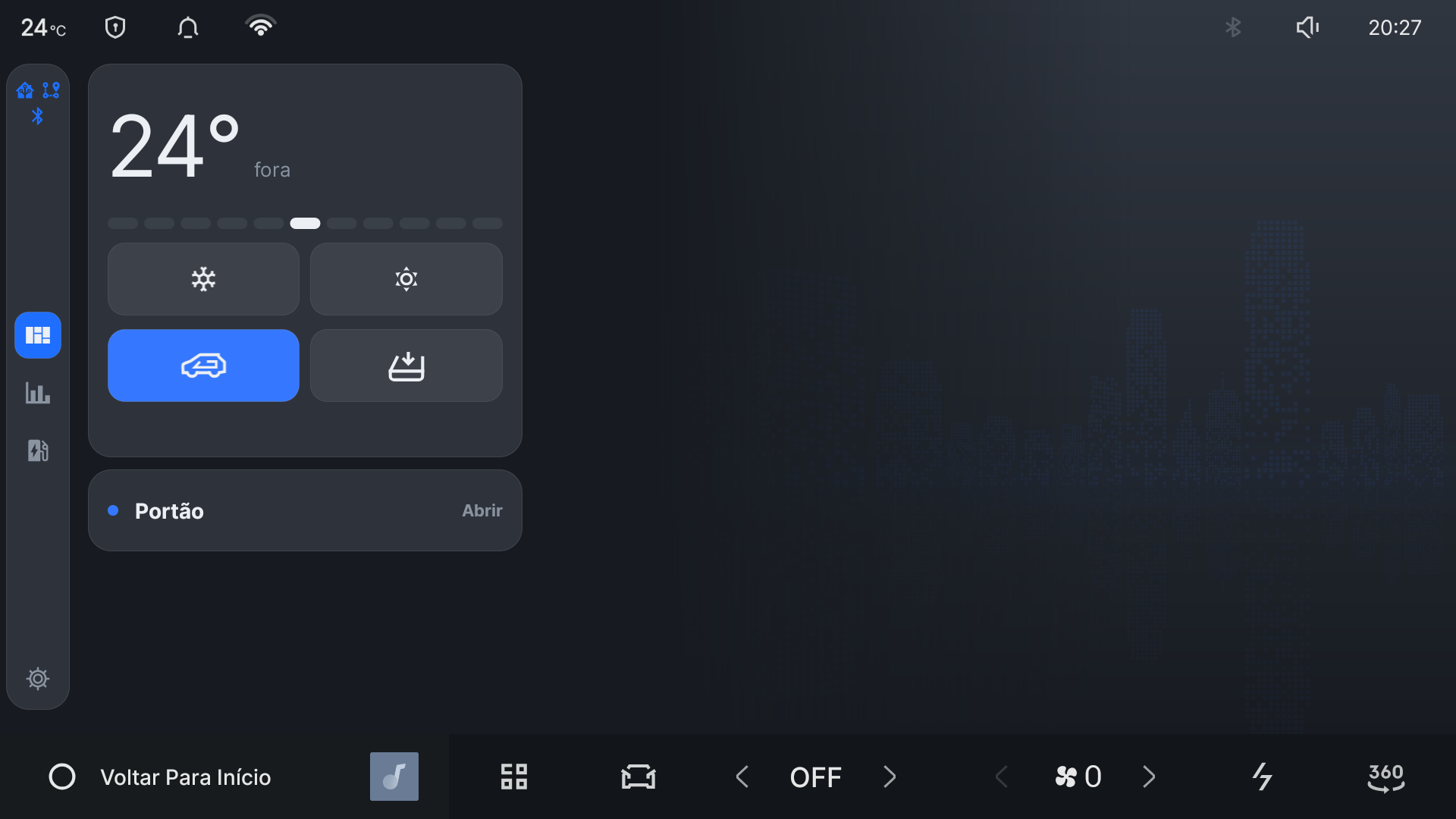
The first screen is designed for quick use in the car:
- The large temperature reading shows the outdoor temperature.
- The comfort scale lets you ask for cooler or warmer air without managing every climate setting separately.
- Large buttons provide direct access to cooling, heating, recirculation, and window clearing.
- When the car is charging, a battery card shows progress and an estimated time to full.
- Optional cards can show your garage gate, live information sent by Home Assistant, or other context that matters at your location.
The controls use large touch targets and avoid filling the screen with switches. Most of the screen stays calm so the useful information is readable at a glance.
The car remembers your preferences
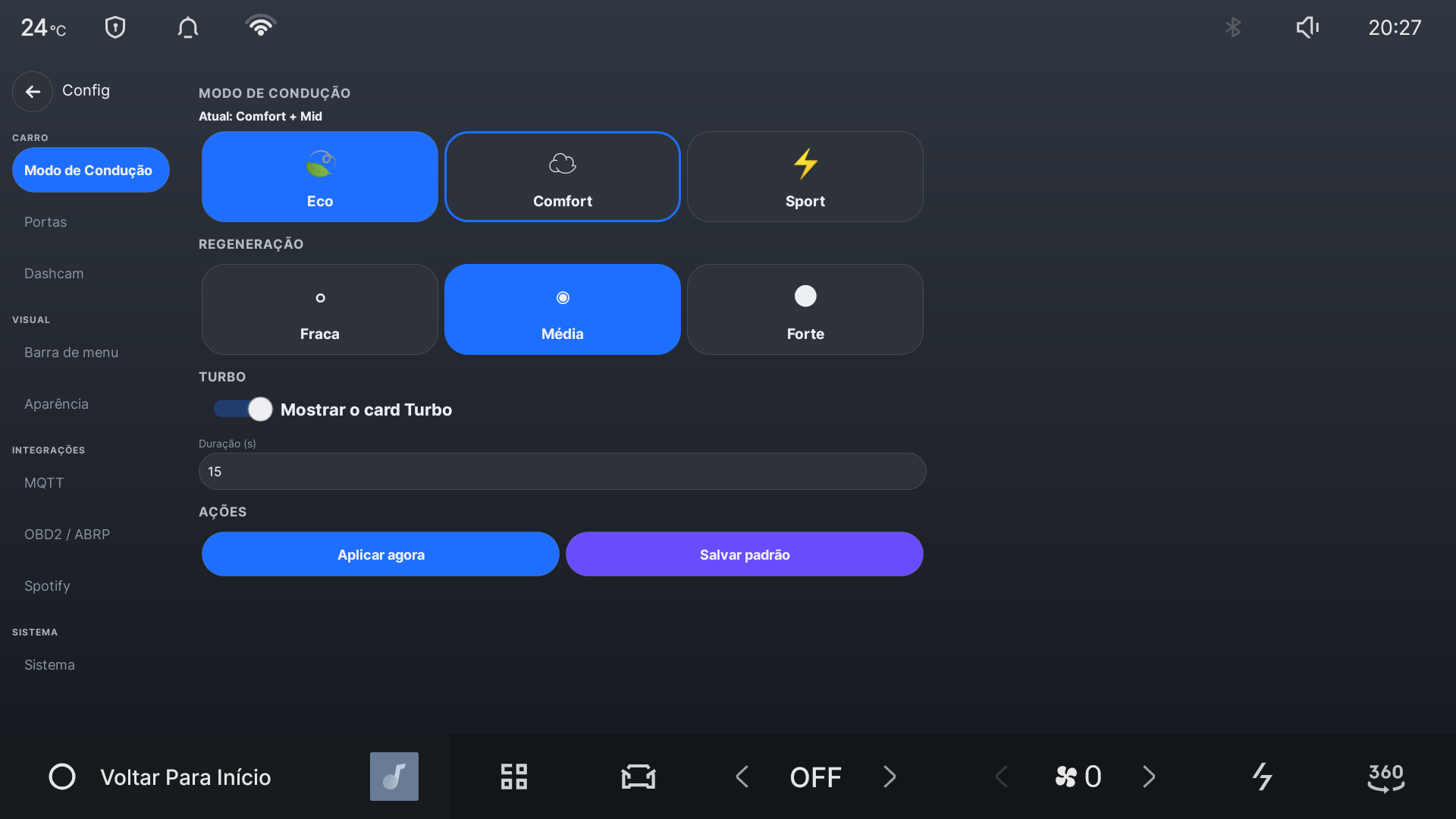
Choose the drive mode and regeneration level you prefer. Drive Assist can restore them when the car starts, instead of making you repeat the same setup on every trip. You can also choose whether optional cards, status icons, and background art appear on the dashboard.
Settings that affect the vehicle are applied through the small ModeHelper companion installed with Drive Assist. The main dashboard and the privileged helper remain separate for safety and reliability.
Understand each day, not just the odometer
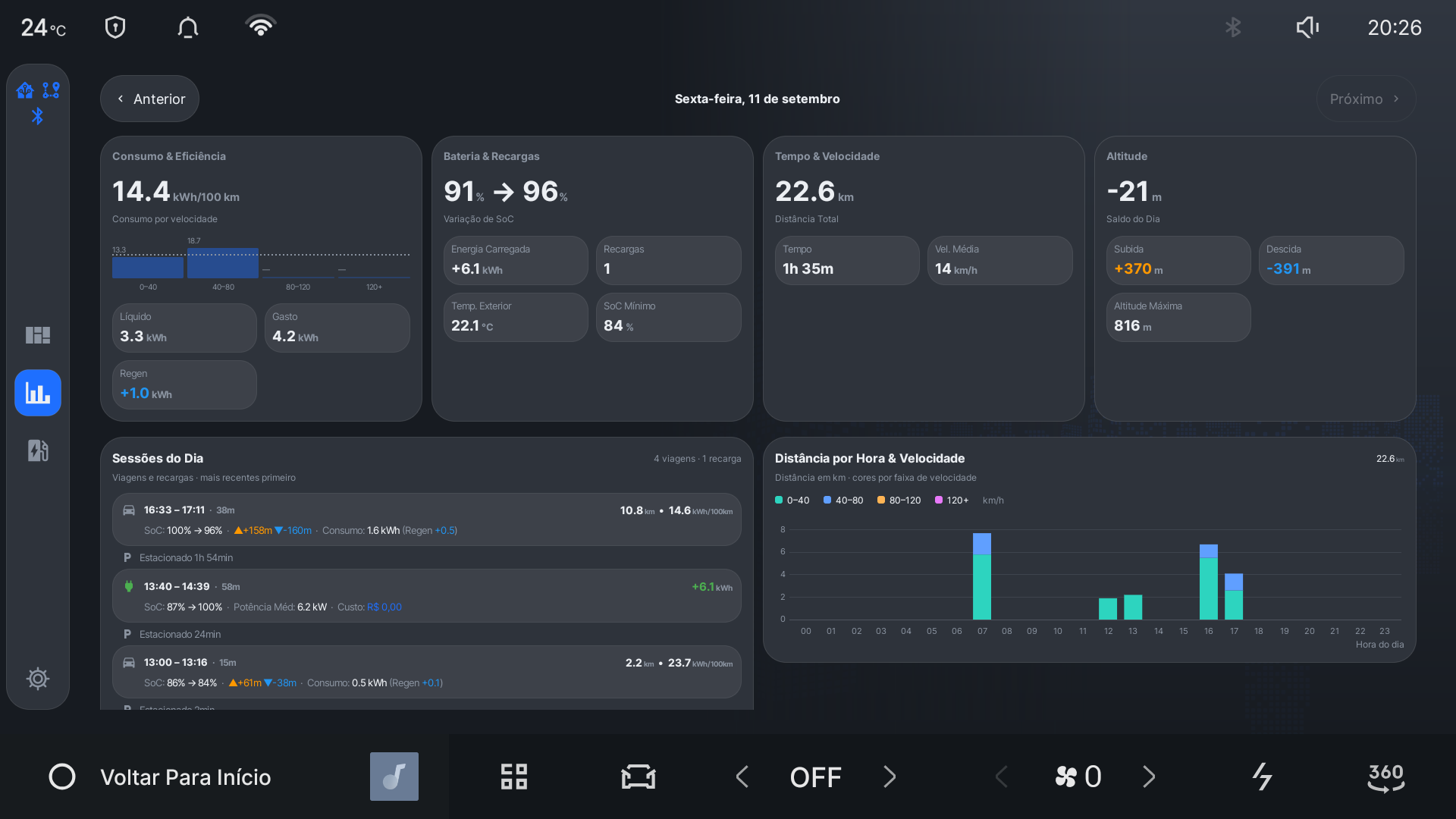
Daily Statistics turns the car’s raw readings into a useful diary:
- distance, driving time, average speed, and battery change;
- energy used and recovered through regeneration;
- efficiency by speed range;
- climbing, descending, and the day’s altitude balance;
- a timeline of drives and recharges, with parked time shown between them;
- distance driven during every hour of the day, coloured by speed range.
Parked climate use is kept out of driving efficiency. A zero-speed sample still counts when the car is in a driving gear, so queues and stop-and-go traffic remain part of the trip.
Keep track of charging and cost
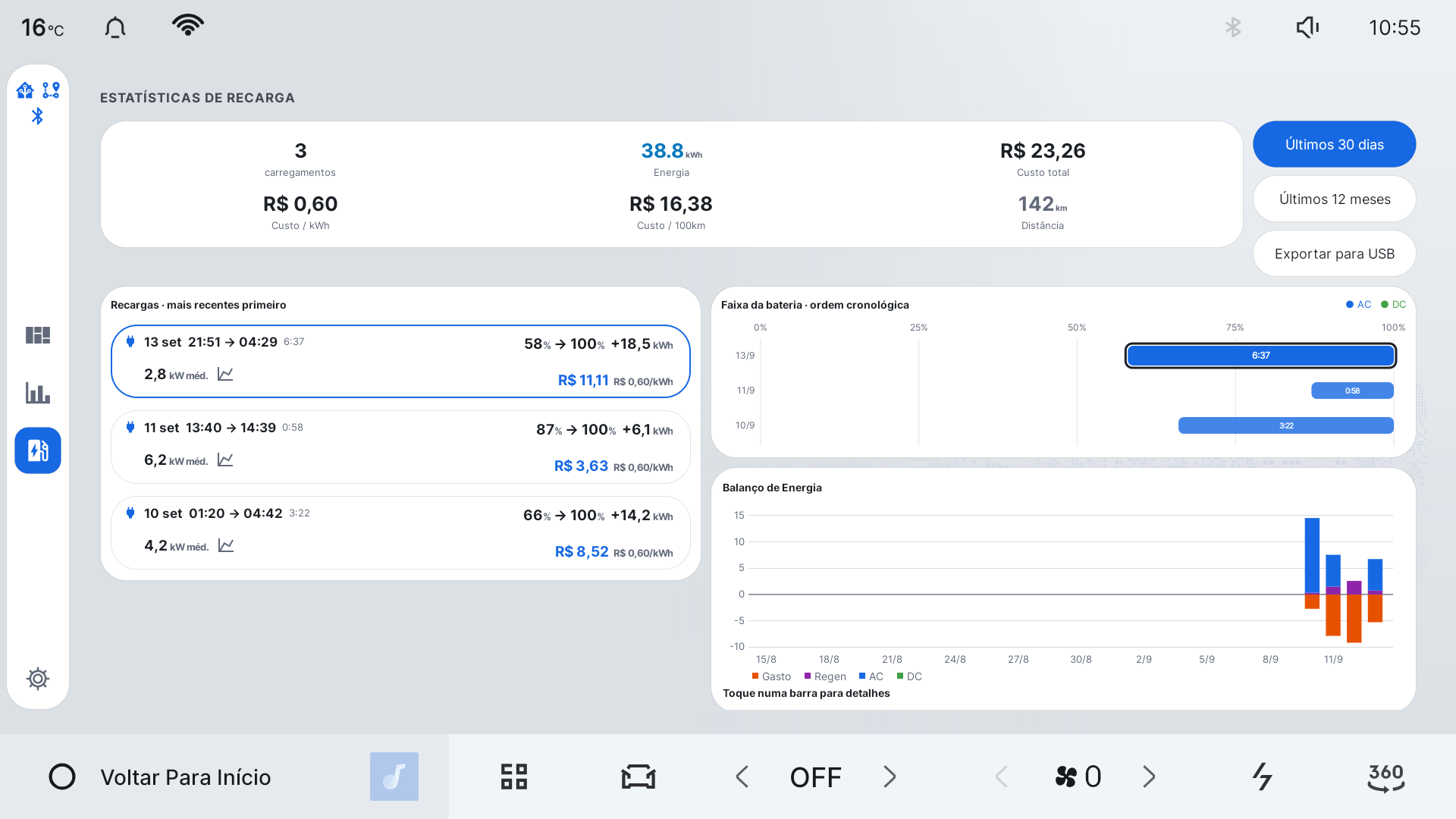
The Charging Statistics screen keeps previous charging sessions, including their energy, duration, battery change, and average power. Add or correct the price of a past recharge by tapping its session while the car is parked. A free recharge can be recorded as zero; it remains different from a recharge whose price was never entered.
The 30-day energy chart compares what left the battery with what came back through regeneration, AC charging, and DC fast charging. Charging that crosses midnight is split between the calendar days it actually occupied.
Bring your own connected services
These integrations are optional. Drive Assist works as an in-car dashboard without them.
Home Assistant
Connect Drive Assist to your own Home Assistant server to see battery, range, location, charging, climate, and other vehicle information at home. Home Assistant can also send a contextual panel to the car—for example a ferry wait time or a doorbell image—and can make a garage-gate button appear when the car reaches home.
Vehicle data goes to the server you configure. Drive Assist does not send it to an analytics service operated by this project. Setup instructions are in the Home Assistant guide.
A Better Routeplanner
Drive Assist can send live battery and position information to ABRP so long-trip planning reflects what the car is doing now. An optional Bluetooth OBD2 adapter can provide more precise battery-management data. See the ABRP guide.
Dashcam
The optional dashcam uses the car’s existing cameras and can add time, position, and speed information to recordings. Clips can be exported to USB. Read the dashcam guide before enabling it, because storage and local recording rules vary by region.
What Drive Assist can control
Drive Assist is limited to comfort and convenience functions such as climate, drive mode, regeneration, cabin lighting, charging preferences, and the optional Home Assistant gate command.
It does not steer, brake, accelerate, unlock doors, or release the boot. Door and body signals shown by the app are read-only. The safety and privacy guide lists the boundaries and their implementation.
Getting it onto the car
The easiest route for most owners is the single USB installer. Follow the short installation guide. The car must already be unlocked for third-party application installation.
There are also computer-assisted installation methods for owners who already use ADB. Start with the short choice guide in Installation; the command-by-command reference is further down that page.