Documentation
Connect Drive Assist to A Better Routeplanner
English · Português (Brasil)
Drive Assist can send live battery, speed, power, charging, and optional location data to A Better Routeplanner (ABRP). ABRP uses these readings while estimating energy use and charging stops.
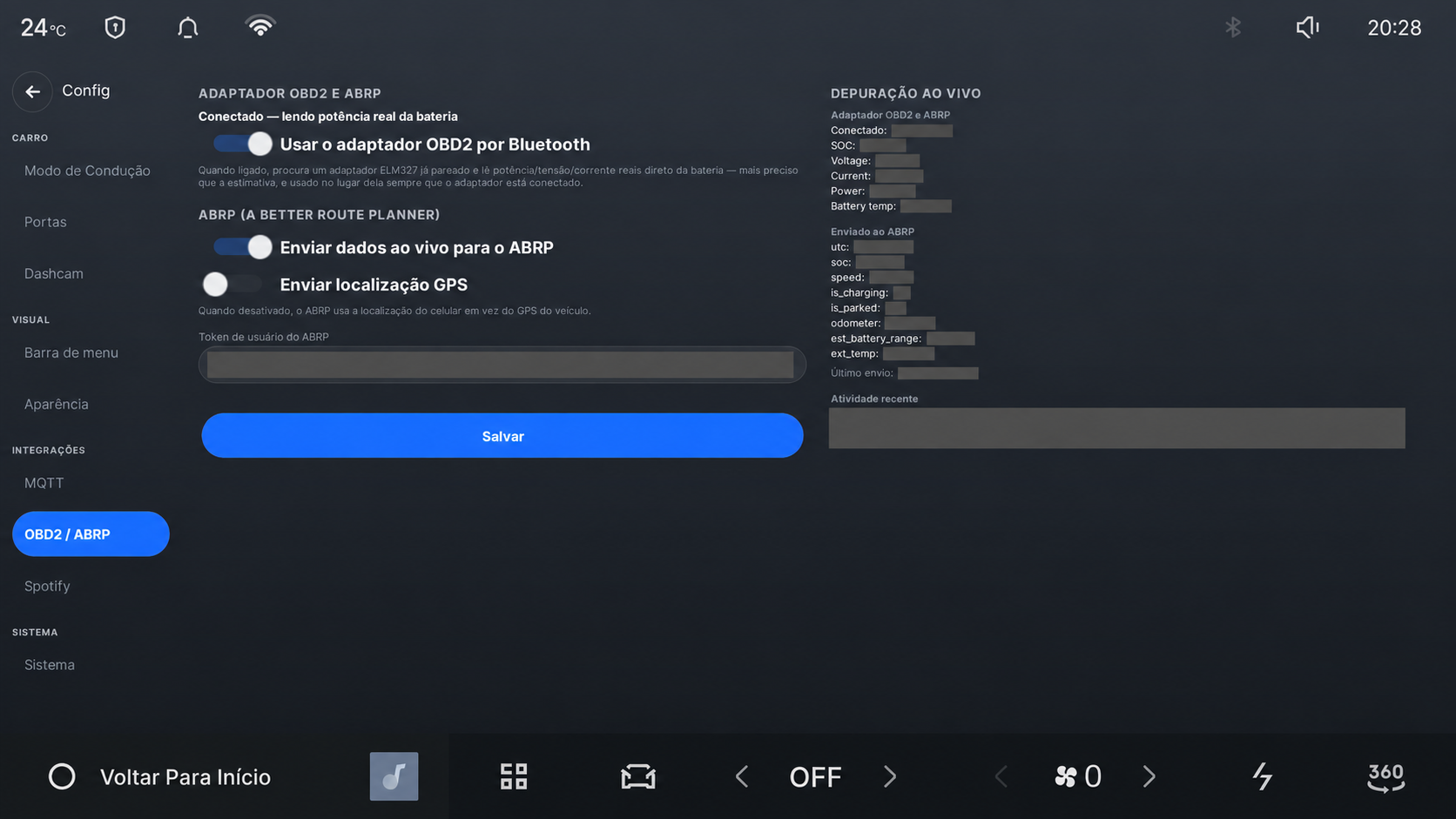
The gray areas conceal the ABRP token and readings from the owner’s vehicle.
Before you start
Add the car to your ABRP account and select its generic live-data connection. ABRP will provide a user token for that vehicle. Treat the token as a password: someone who obtains it may be able to submit data to your ABRP vehicle.
An OBD2 adapter is optional. Without one, Drive Assist uses the readings already available from the car. A compatible adapter can add finer battery percentage, pack voltage, current, and temperature readings.
Connect the car
- In ABRP, open the vehicle’s Live data settings, choose the generic connection, and copy its user token.
- On the car, open Settings → OBD2 / ABRP.
- Enable ABRP telemetry and enter the token.
- Choose whether to send GPS location. Disabling it keeps coordinates, elevation, and heading out of the upload; battery and energy readings can still be sent.
- Save the settings and run the connection test.
- Open ABRP and confirm that the vehicle reports live data.
The car sends this information to ABRP’s service over the internet. ABRP’s own account, privacy, and retention terms apply to data received by that service.
If you want to add an OBD2 adapter, read the security notice before enabling root ADB or changing the head unit’s Bluetooth configuration. Pairing instructions, supported adapters, transmitted fields, and diagnostic details are in the ABRP and OBD2 technical reference.